Affordable Veo 3.1 API for High-Fidelity AI Video Generation
Create cinematic videos with Google Veo 3.1 API, choose from Quality, Fast, and Lite models, and scale video generation through EMix.ai.
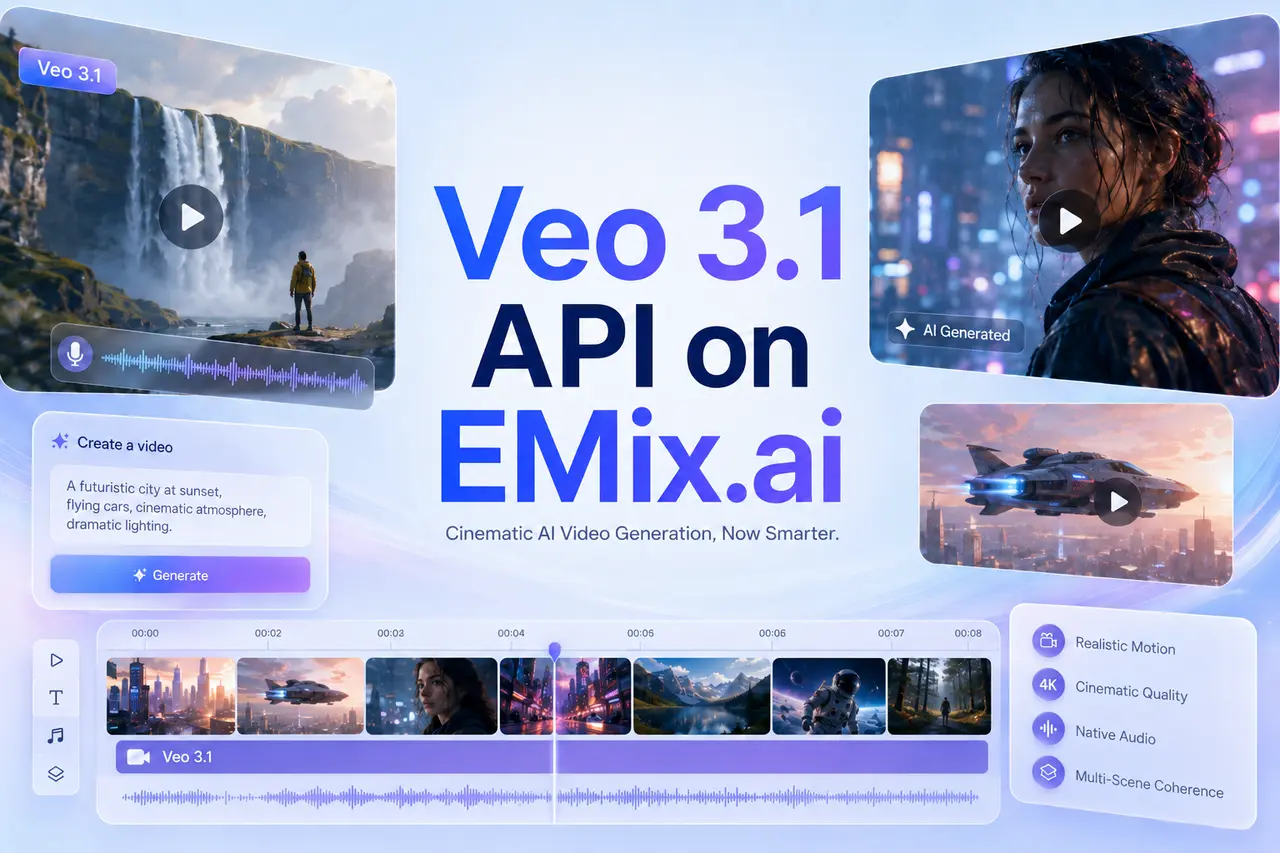
Find the Right Veo 3.1 API Model on EMix.ai
Developed by Google DeepMind, Veo 3.1 is built for high-quality video generation with native audio, realistic motion, and stronger creative control. EMix.ai provides access to three Veo 3.1 API model options—Quality, Fast, and Lite—so developers can choose the right balance between final output quality, faster iteration, and scalable video generation.
Veo 3.1 Quality API
Veo 3.1 Quality API is designed for cinematic video generation with stronger visual detail, smoother motion, and more polished native audio. It is a practical choice for product videos, brand campaigns, storytelling clips, and final creative assets that need higher fidelity.
Veo 3.1 Fast API
Veo 3.1 Fast API helps teams generate video results more quickly while still using the core strengths of Google Veo 3.1 API. It works well for prompt testing, creative previews, social content variations, and projects that require faster feedback before final production.
Veo 3.1 Lite API
Veo 3.1 Lite API offers a more efficient path for scalable video generation. It is suitable for high-volume content tools, lightweight video applications, frequent testing, and projects that need Veo 3.1 API access with better cost control.
Key Features of Veo 3.1 API for Cinematic Video Creation
Create Sharper HD Video Scenes with Veo 3.1 API
Veo 3.1 API is built for high-fidelity video generation, helping short clips look cleaner, more realistic, and more visually complete. It supports polished HD-style output for cinematic scenes, product visuals, social content, and story-driven videos, with 1080P and 4K upscale options available where supported by the latest EMix.ai documentation.
Bring Sound and Visuals Together with Google Veo 3.1 API
Google Veo 3.1 API adds native audio directly into the video creation process, including dialogue, ambient sound, and scene-matched effects. Instead of creating a silent clip first and adding sound later, the final video can feel more complete from the start, with audio that supports the mood, action, and rhythm of the scene.
Turn Still Images into More Expressive Videos with Veo 3.1 API
Veo 3.1 API can animate an input image into a dynamic video while following the intended movement, atmosphere, and audiovisual direction. Product photos, character concepts, campaign images, posters, and story frames can become more engaging clips with motion, sound, and cinematic camera feel.
Keep Characters Scenes and Styles More Consistent in Veo 3.1 API
Veo 3.1 API can use reference images as creative ingredients to guide the look of a character, object, scene, or visual style. This helps related clips feel more connected, especially when the same subject, product identity, color tone, or cinematic mood needs to stay recognizable across multiple generations.
Shape More Natural Transitions with Veo 3.1 API Frame Control
With first and last frame control, Veo 3.1 API can create a smoother visual path between two defined moments. This is useful for product reveals, scene changes, transformation shots, cinematic openings, and short narrative sequences where the clip needs a clearer beginning, ending, and sense of direction.
Start Your Veo 3.1 API Integration on EMix.ai
Get started with our product in just a few simple steps...
Step 1: Sign Up and Get a Veo 3.1 API Key
Create an EMix.ai account and generate your Veo 3.1 API key from the dashboard. This key gives you access to the available Veo 3.1 API model options, including Veo 3.1 Quality API, Veo 3.1 Fast API, and Veo 3.1 Lite API, so you can begin testing video generation through API requests.
Step 2: Test Veo 3.1 API with Available Credits
Use available credits to test Veo 3.1 API before choosing a model for regular use. Try different prompts, image inputs, resolutions, durations, and model options to compare real output performance. This helps you decide whether your use case needs higher visual quality, faster generation, or a more efficient option for frequent video creation.
Step 3: Integrate the Veo 3.1 API Model That Fits Your Use Case
After testing, choose the Veo 3.1 API model that best matches your project requirements and connect it to your application, platform, or internal system. Use the latest EMix.ai API documentation to confirm request parameters, supported inputs, generation settings, response handling, and output rules. For Extend, 1080P upscale, and 4K upscale, confirm the latest support before adding these features to your integration.
Veo 3.1 vs Kling 3.0 vs Seedance 2.0 vs Veo 3 for Different AI Video Generation Needs
Veo 3.1, Kling 3.0, Seedance 2.0, and Veo 3 are built around different strengths in AI video generation. Veo 3.1 is better suited to polished cinematic clips and native audio scenes, Kling 3.0 focuses on smooth motion and action quality, Seedance 2.0 offers broader multimodal reference control and longer generations, while Veo 3 remains a practical option for stable short-form video creation.
| Category | Veo 3.1 | Kling 3.0 | Seedance 2.0 | Veo 3 |
|---|---|---|---|---|
| Vendor | Google DeepMind | Kuaishou | ByteDance | Google DeepMind |
| Core Focus | Cinematic video quality, native audio, and more controlled scene direction | Natural motion, smooth action, and physically believable movement | Multimodal creation with broader reference input and longer video generation | Reliable short-form video generation with strong baseline realism |
| Input Direction | Text and image-based generation, with first-and-last-frame control and reference-guided creation where supported | Text and image input, with motion-focused control depending on platform support | Text, image, video, and audio references depending on the generation mode | Text and image-based video generation |
| Audio Support | Native audio for dialogue, ambient sound, music, and scene-matched effects | Native audio support for dialogue and sound effects | Native audio support, with stronger flexibility when audio references are used | Native audio for dialogue, ambient sound, and effects |
| Video Style | Polished, cinematic, high-fidelity short clips | Motion-heavy scenes with smooth subject movement | More flexible multi-reference and multi-shot-style creation | Stable, realistic, short-form video output |
| Best Fit | Product visuals, cinematic scenes, branded content, story moments, and high-fidelity video clips | Action scenes, character movement, social videos, sports-style motion, and fast visual concepts | Longer creative sequences, reference-heavy ideas, music-style clips, and template-based content | Grounded scenes, product demonstrations, simple short clips, and cases that do not need newer Veo 3.1 controls |
How to Write Veo 3.1 Prompts for Cinematic Video Results
A strong Veo 3.1 prompt usually works best when it follows a clear scene-building structure: camera direction + subject + action + setting + visual style + audio cue. Instead of writing only what should appear in the video, describe how the shot should be filmed, how the subject should move, what the scene should feel like, and what sound should support the moment.
Build Veo 3.1 API Prompts Around a Complete Scene
A stronger Veo 3.1 API prompt should describe the full scene instead of only naming the subject. Include who or what appears in the frame, what is happening, where the scene takes place, and what mood the video should carry. This gives the generation more direction and helps the final clip feel more intentional.
Add Camera Language to Google Veo 3.1 API Prompts
Google Veo 3.1 API can follow cinematic camera direction more clearly when the movement is written into the prompt. Phrases such as slow push-in, handheld tracking shot, close-up, wide establishing shot, low-angle view, or gentle pan can help shape how the scene unfolds and make the result feel more directed.
Describe Native Audio Clearly in Veo 3.1 API Prompts
When sound is part of the result, write audio details directly into the prompt. Dialogue can be placed in quotation marks, while ambient sound and effects can be described naturally, such as rain hitting glass, distant traffic, soft footsteps, wind through trees, or a low cinematic score. Clear sound cues help the video feel more complete.
Use Reference Images with a Clear Creative Role
When reference images are used, the prompt should explain what each image is meant to guide. A reference can define a character, product, setting, color tone, lighting style, or overall visual mood. This helps Veo 3.1 keep the important parts of the reference visible instead of treating the image as loose inspiration.
Plan First and Last Frame Prompts with Natural Movement
For first and last frame generation, the prompt should explain how the video moves from the starting image to the ending image. Describe the camera path, subject motion, pacing, and atmosphere so the transition feels natural. For Extend, 1080P upscale, or 4K upscale, check the latest EMix.ai documentation for current support and input requirements.
Where Veo 3.1 API Fits in Real Video Generation Projects
Cinematic Brand Campaigns with Veo 3.1 API
Veo 3.1 API can help turn campaign ideas, product concepts, or visual briefs into polished short videos with cinematic lighting, realistic motion, and scene-matched audio. It works well for product launches, brand teasers, premium ad creatives, and homepage hero visuals that need a stronger production feel.
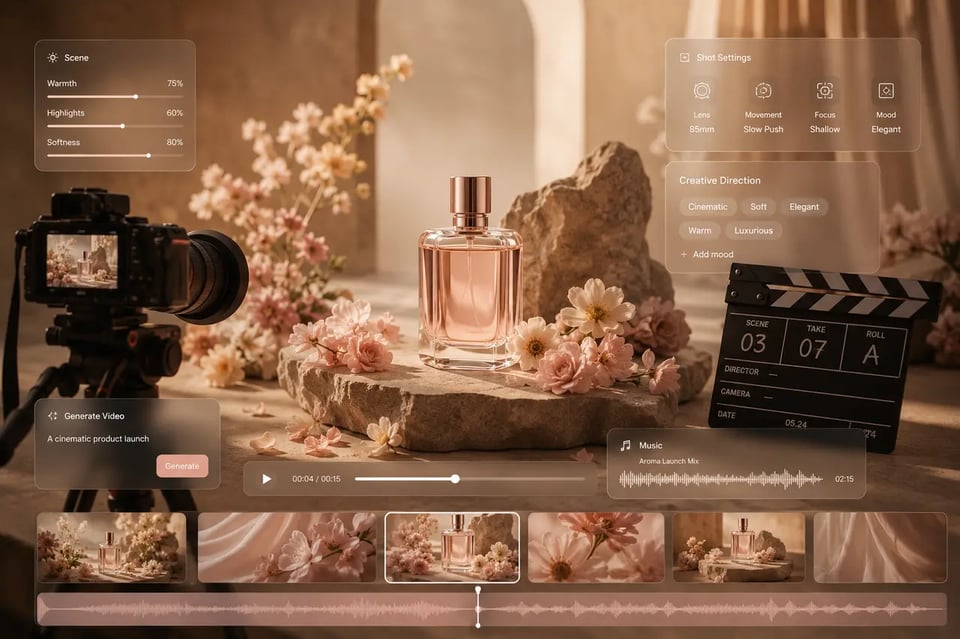
Image to Video Creative Assets with Google Veo 3.1 API
Google Veo 3.1 API is useful when an existing still image needs to become a more dynamic video asset. Product photos, poster designs, character images, lifestyle shots, and campaign key visuals can be animated with controlled motion, atmosphere, and sound, making them easier to reuse across video-first channels.
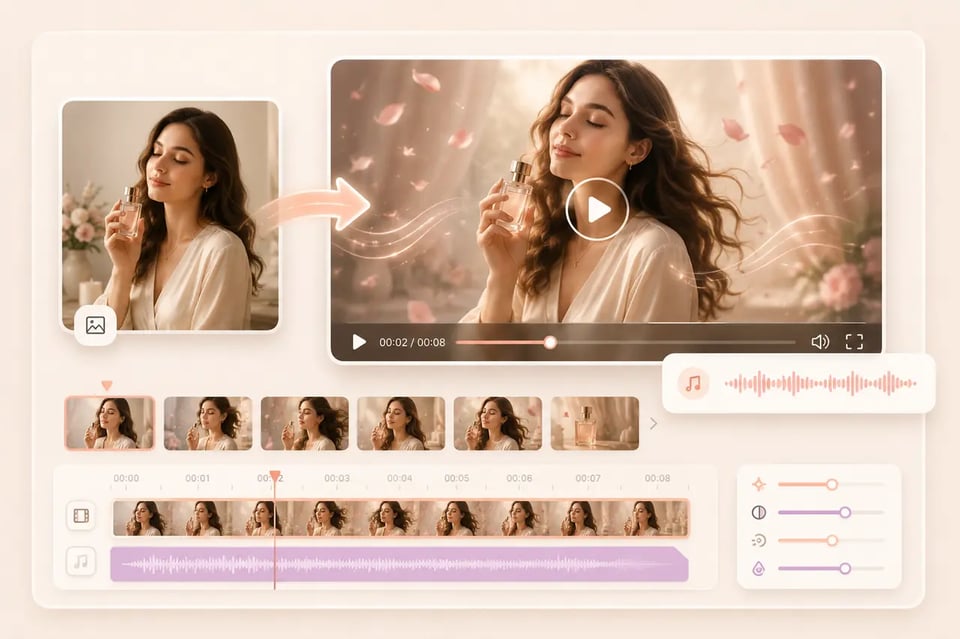
Rapid Video Concept Testing with Veo 3.1 Fast API
Veo 3.1 Fast API fits early creative testing when teams need to compare multiple prompts, visual directions, or campaign variations quickly. It is suitable for ad drafts, social content previews, storyboard tests, and internal creative reviews before moving selected ideas into a higher-quality generation stage.
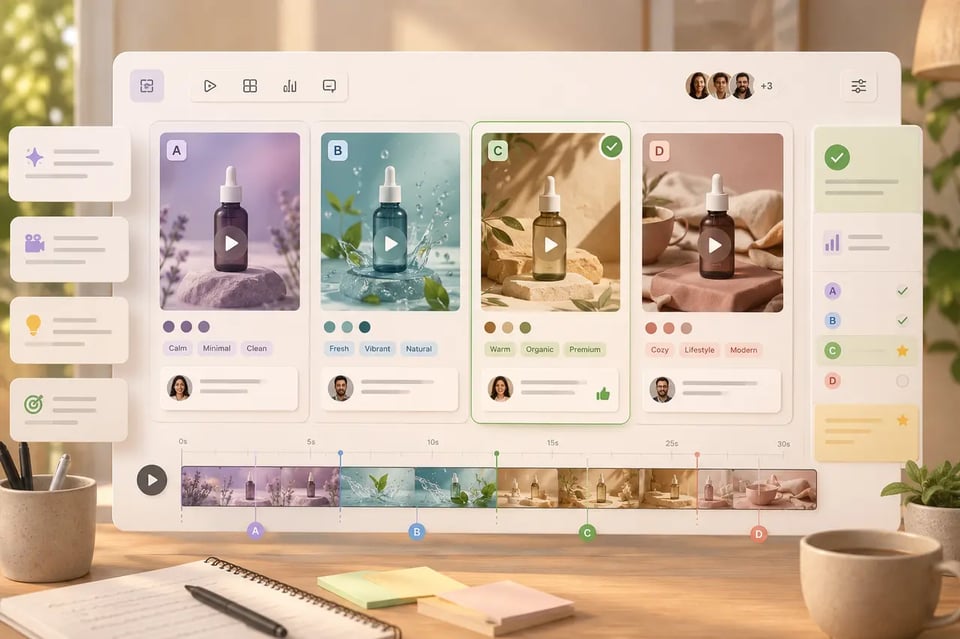
Scalable Short Video Creation with Veo 3.1 Lite API
Veo 3.1 Lite API is a practical option for frequent video generation where efficiency matters. It can support content tools, automated video features, lightweight creative products, and high-volume short video use cases that need access to Veo 3.1 generation without relying on the highest-cost model for every result.
What Makes EMix.ai a Practical Choice for Veo 3.1 API Integration
Multiple Veo 3.1 API Models for Different Generation Needs
EMix.ai provides Veo 3.1 Quality API, Veo 3.1 Fast API, and Veo 3.1 Lite API in one platform. Teams can choose a higher-quality model for polished creative output, a faster model for quicker testing, or a more efficient model for frequent video generation.
Cost-Efficient Veo 3.1 API Pricing
EMix.ai makes Veo 3.1 API Pricing easier to compare across different model options and usage needs. Since video generation cost can vary by model, duration, resolution, and feature type, users can choose a more cost-efficient setup for testing, scaling, or production use.
Veo 3.1 API Documentation for Clear Integration
EMix.ai provides Veo 3.1 API Documentation covering model options, request parameters, supported inputs, output rules, and feature availability. For generation, Extend, 1080P upscale, and 4K upscale, users can check the latest documentation before connecting or updating their Veo 3.1 API integration.
24/7 Support for Veo 3.1 API Users
EMix.ai offers 24/7 support for Veo 3.1 API users across testing and integration stages. Whether the question is about model selection, request setup, feature availability, output behavior, or documentation details, users can get help when they need it.
FAQs About Veo 3.1 API
Here are some common questions and answers
What is Veo 3.1 API?
Veo 3.1 API provides access to Google DeepMind’s Veo 3.1 video generation capabilities for creating high-quality videos from prompts, images, and supported inputs. It is designed for cinematic short-form video generation with realistic motion, native audio, stronger prompt adherence, and more precise creative control.
What Veo 3.1 API models are available on EMix.ai?
EMix.ai provides three Veo 3.1 API model options: Veo 3.1 Quality API, Veo 3.1 Fast API, and Veo 3.1 Lite API. Quality is better for polished final results, Fast is better for quicker iteration, and Lite is better for more frequent generation with stronger cost efficiency.
Does Google Veo 3.1 API support native audio?
Yes. Google Veo 3.1 API supports native audio generation, including dialogue, ambient sound, music, and sound effects where available. For best results, prompts should describe the sound clearly, such as spoken lines, background atmosphere, or action-matched effects.
Can Veo 3.1 API generate videos from images?
Yes. Veo 3.1 API supports image-to-video generation where available, allowing still images to become dynamic video clips. Product photos, character images, campaign visuals, posters, and story frames can be animated with motion, camera direction, and audio guidance.
Can Veo 3.1 API extend or upscale videos?
EMix.ai supports Veo 3.1-related Extend and Upscale options where available. Extend can help continue selected clips, while Upscale can improve output clarity to 1080P or 4K depending on current support. Users should check the latest EMix.ai documentation for supported models, input rules, and output limits.
How should I check Veo 3.1 API Pricing?
Veo 3.1 API Pricing can vary based on the selected model, generation duration, resolution, and feature usage. EMix.ai helps users compare pricing across Quality, Fast, and Lite options, making it easier to choose a cost-efficient setup for testing, scaling, or production use.
Where can I find Veo 3.1 API Documentation?
Veo 3.1 API Documentation is available on EMix.ai and includes details about model options, request parameters, supported inputs, output rules, and feature availability. For generation, Extend, 1080P upscale, and 4K upscale, the latest documentation should be used as the source of truth before integration.